Draft — Text documents
The Grafos word processor. It opens and saves .docx straight in the ECMA-376 format, with no conversion.
Format text
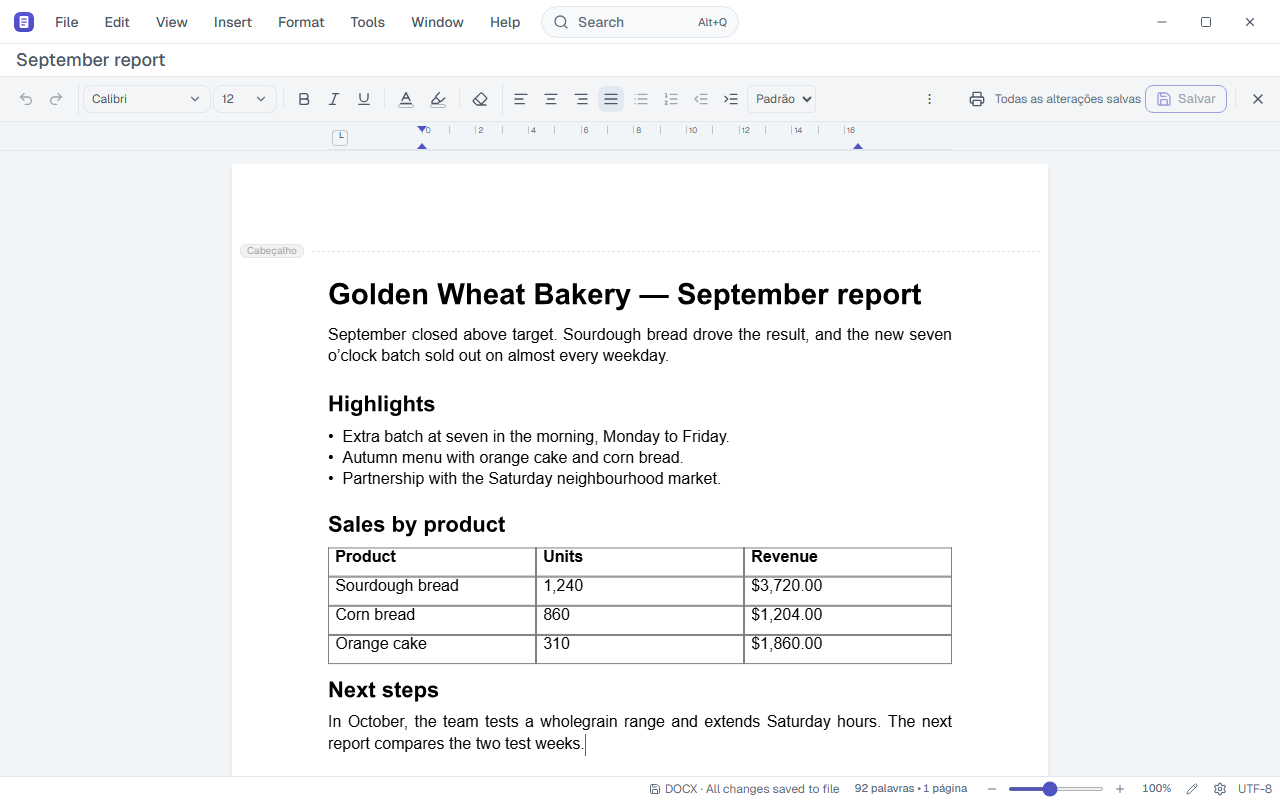
Font, size, bold, italic, underline, strikethrough, colour and highlight. The font picker lists the fonts on your computer, with search and preview. Subscript and superscript have shortcuts.
Where:Toolbar › Font · Format › Text · Ctrl+B / Ctrl+I / Ctrl+U · Ctrl+Shift+, and Ctrl+Shift+.
Change case
Switch the selected text to UPPERCASE, lowercase, Capitalise Each Word, or toggle it.
Where:Format › Change case
Paragraphs
Alignment, bulleted or numbered lists, indent and line spacing (1.0 to 2.0). The ruler sets the first-line indent and tab stops.
Where:Toolbar › Paragraph · Format › Text alignment · Format › Lists · Format › Indent and spacing · Format › Hyphenation…
Styles
The gallery applies the styles of the document itself.
Where:Toolbar › Styles · Format › Paragraph style
Tables
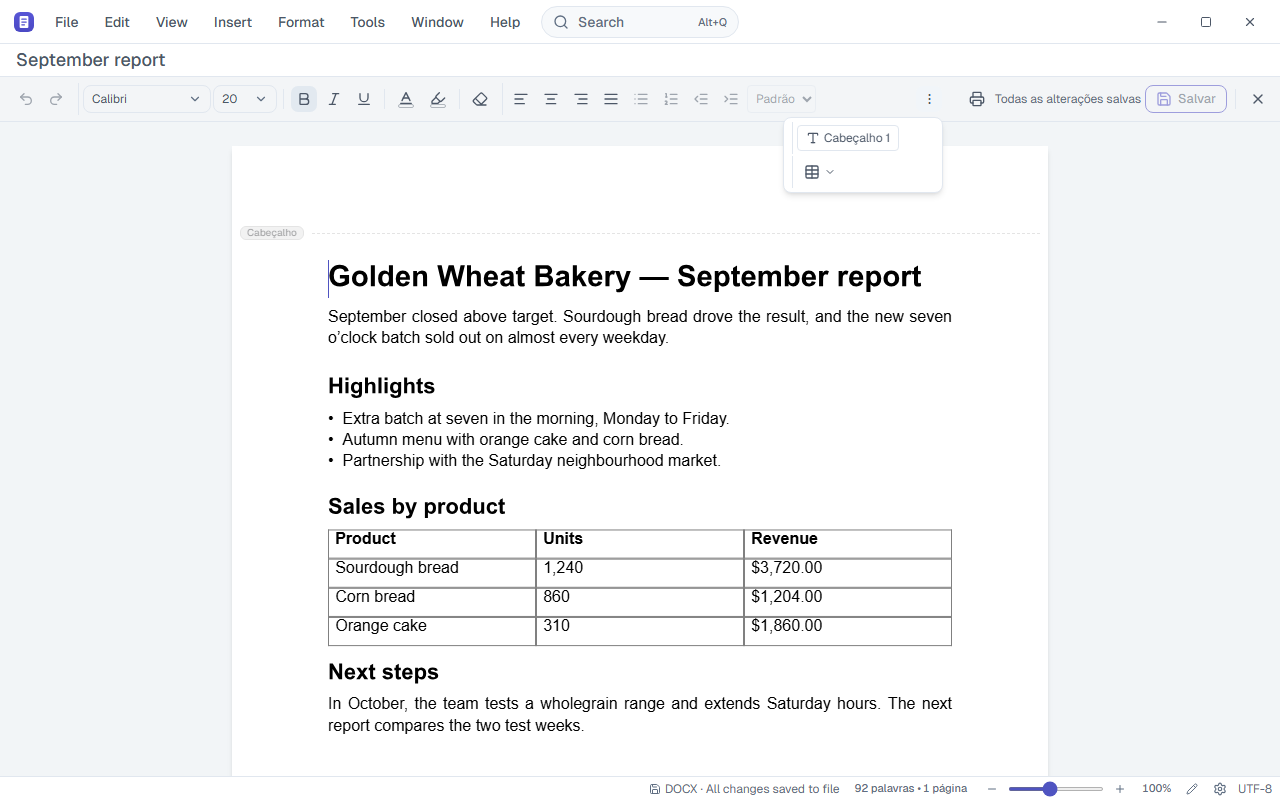
Insert a 3×3 table with a header row. Add and remove rows and columns, merge and split cells. Apply a table style from the gallery.
Where:Insert › Table · Format › Table · Toolbar › Table ▾
Images, symbols, equations and links
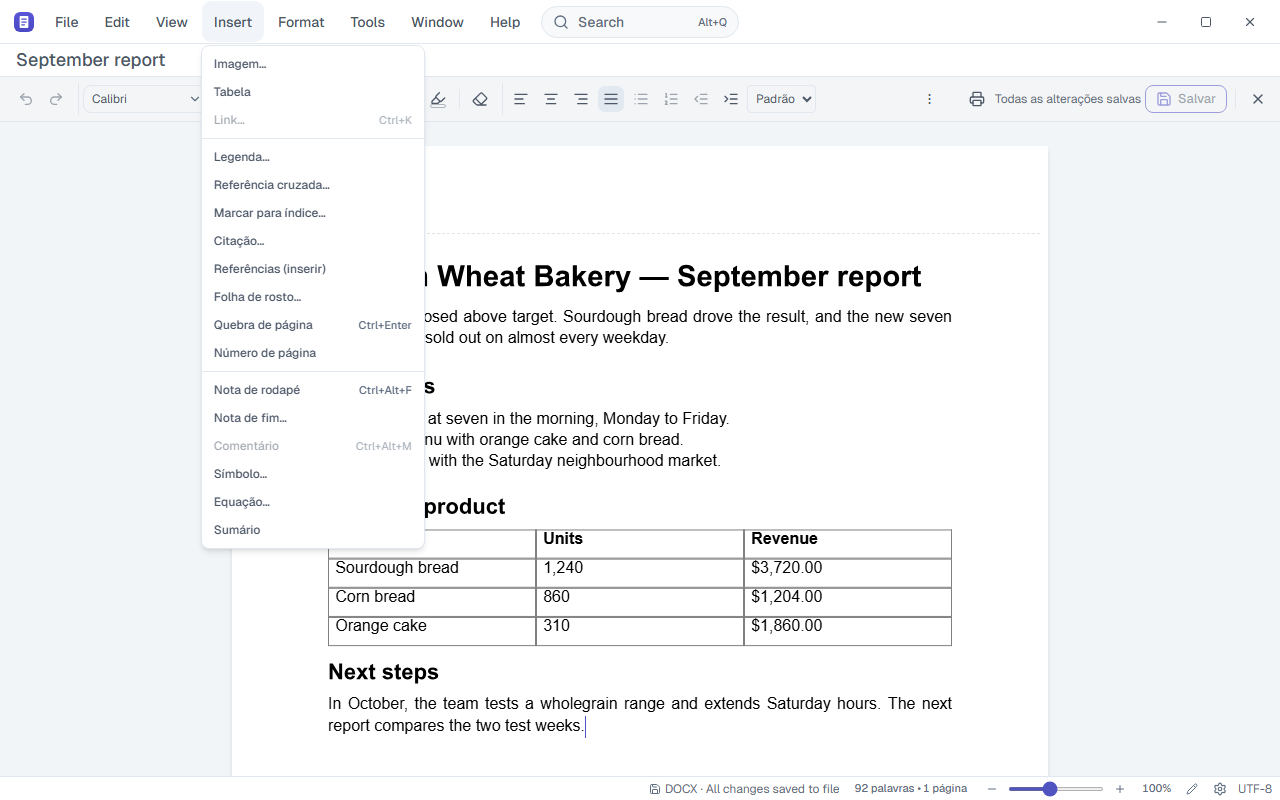
Insert images (PNG, JPG, GIF, WebP), symbols, equations and links.
Where:Insert › Image… · Insert › Symbol… · Insert › Equation… · Insert › Link…
Pages and sections
Page break, page number and cover page. Page setup shows the size, orientation and margins of each section, and edits page borders, columns and line numbering.
Where:Insert › Page break · Insert › Page number · Insert › Cover page… · Format › Page setup…
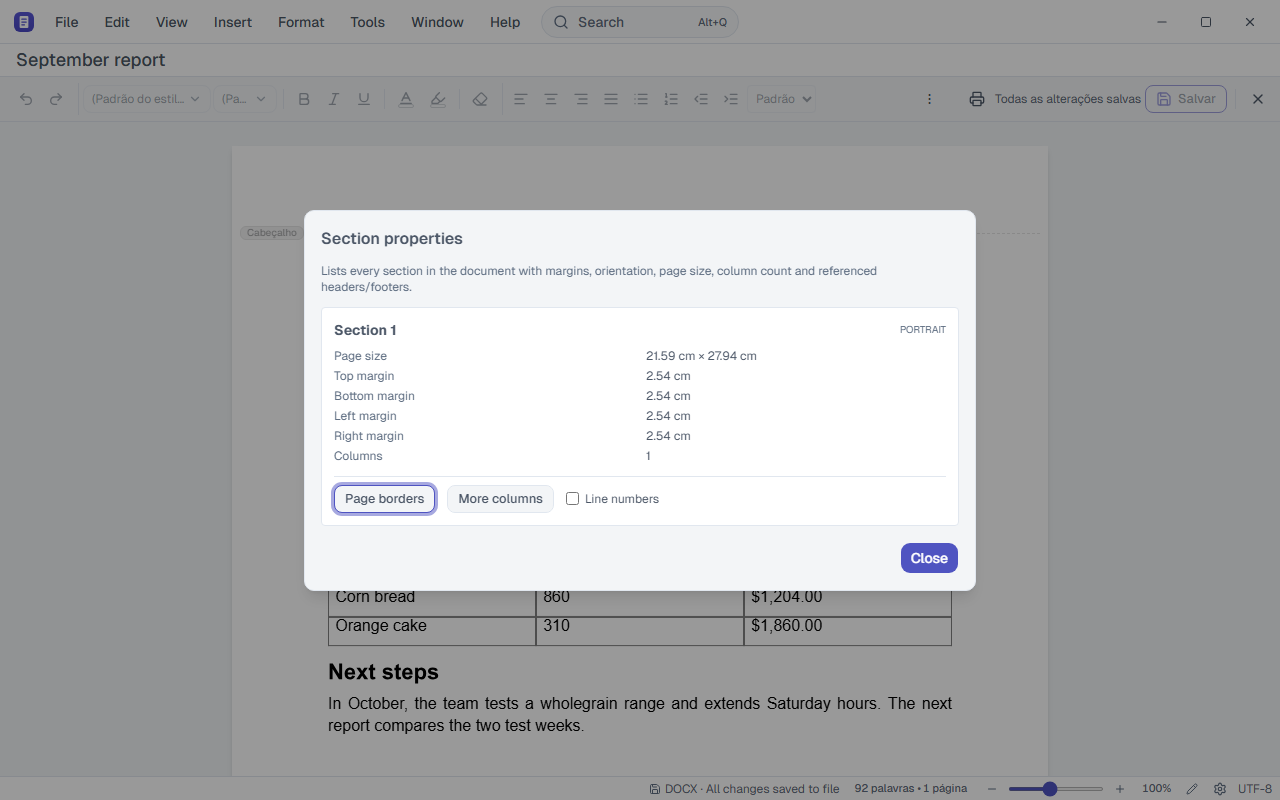
Table of contents and references
Table of contents built from headings. Captions, cross-references, index entries, citations and a bibliography with a source library.
Where:Insert › Table of contents · Insert › Caption… · Insert › Cross-reference… · Insert › Citation… · Tools › Bibliography…
Footnotes and endnotes
Insert notes and edit them all in a side panel.
Where:Insert › Footnote · Insert › Endnote… · View › Footnotes
Comments and revisions
Comment on a passage and read comments in the side panel. Tracked changes that come in the file show in the revisions panel.
Where:Insert › Comment · View › Comments · View › Revisions
Find and replace
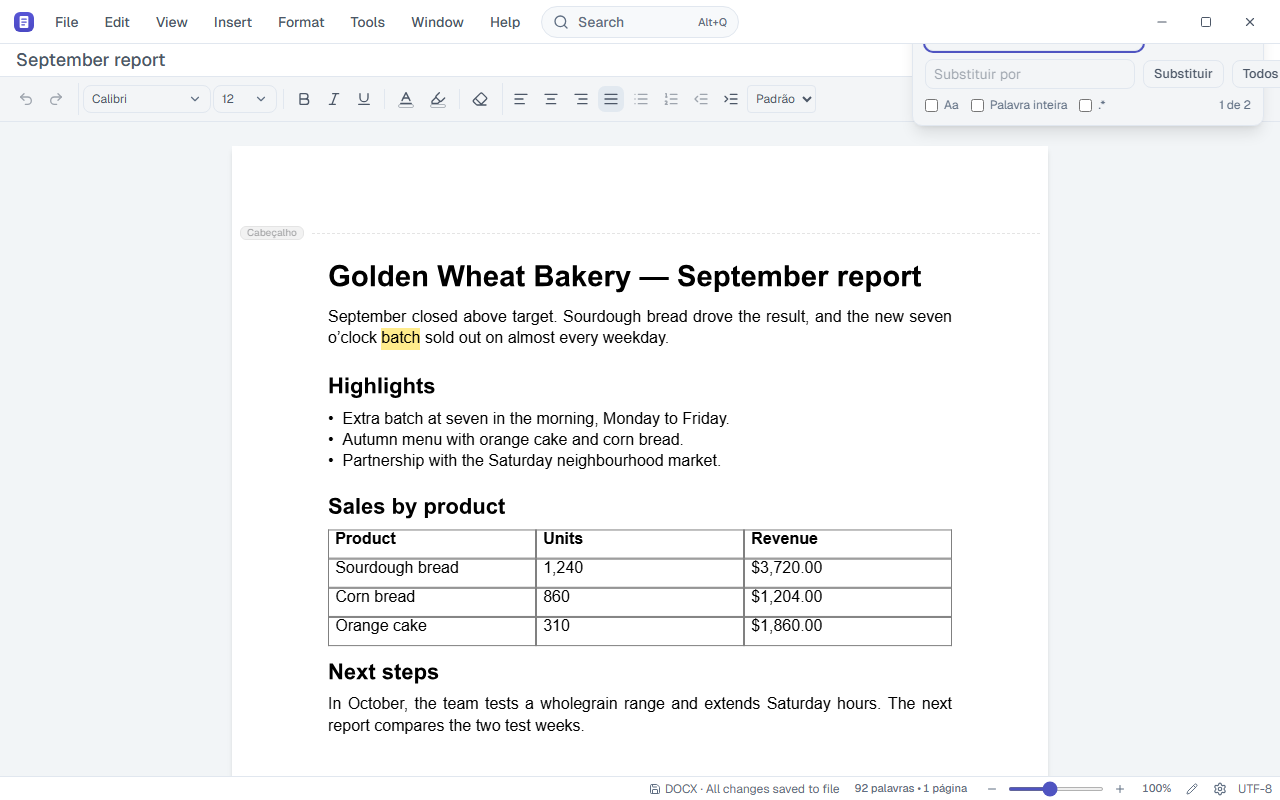
Search and replace text in the document, with regular expressions if you want.
Where:Edit › Find · Ctrl+F · Edit › Replace · Ctrl+H
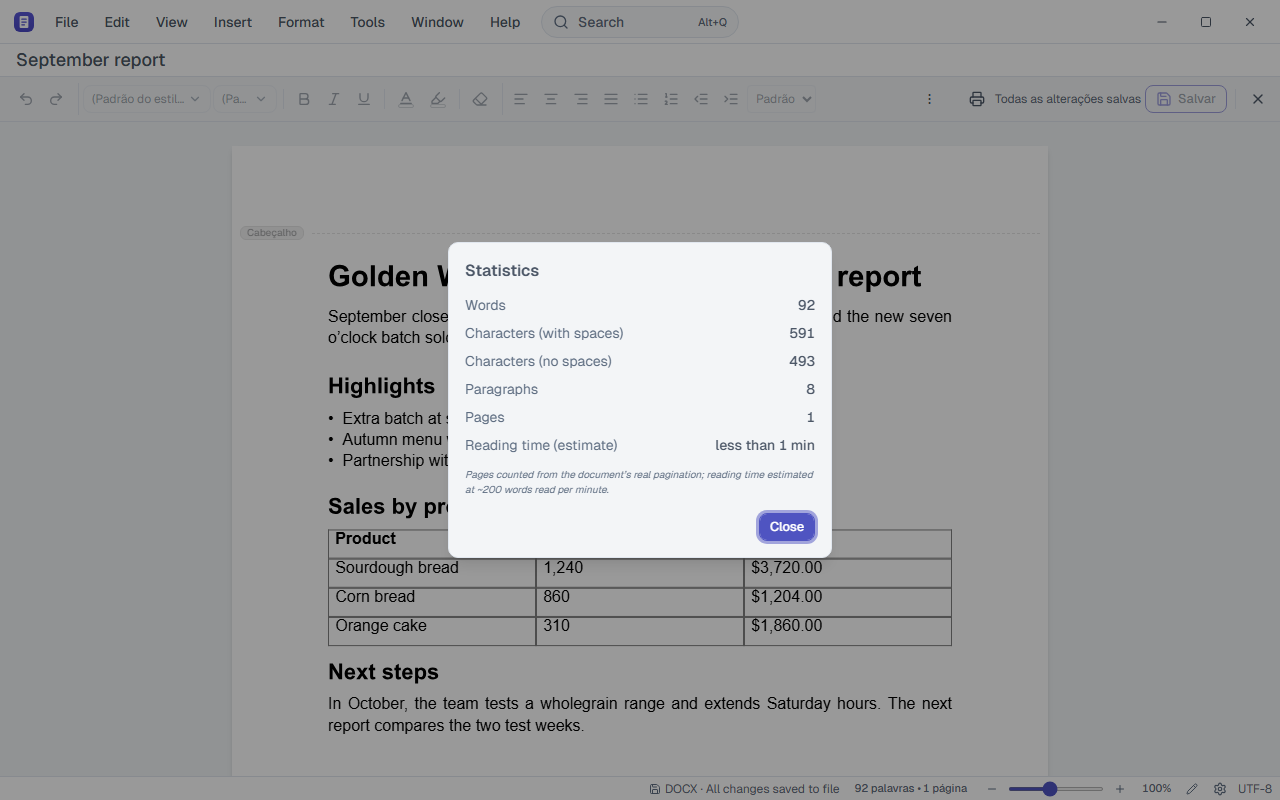
Word count
Words, characters, paragraphs, pages and reading time. The word total also sits on the status bar.
Where:Tools › Word count… · Ctrl+Shift+G · Status bar
Navigate the document
The navigation pane lists the headings. Click one to go there.
Where:View › Outline · View › Ruler
Mail merge
Generate copies of the document from a CSV list.
Where:Tools › Mail merge…
Inspect and protect
Before sharing, check personal data and hidden properties in the file and remove author and description. Restrict editing of the document.
Where:Tools › Inspect document… · Tools › Restrict editing…
Export and print
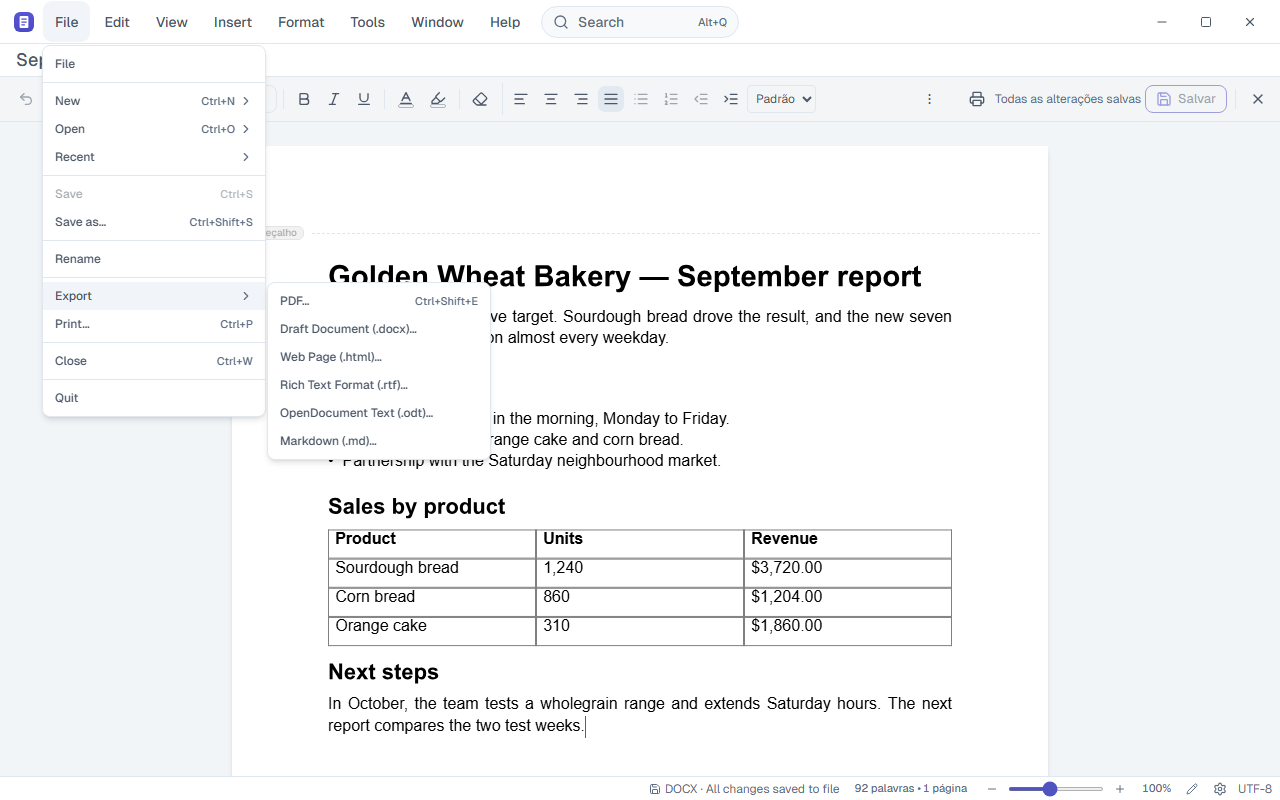
Export to PDF, web page (.html), RTF, OpenDocument (.odt) or Markdown. .html, .md and .rtf documents can be imported from the command bar (Import document…).
Where:File › Export · Ctrl+Shift+E · File › Print… · Ctrl+P
Draft shortcuts
| Keys | What it does |
|---|---|
| Ctrl+B | Bold |
| Ctrl+I | Italic |
| Ctrl+U | Underline |
| Ctrl+L | Align left |
| Ctrl+E | Centre |
| Ctrl+R | Align right |
| Ctrl+J | Justify |
| Tab | Increase indent |
| Shift+Tab | Decrease indent |
| Ctrl+Shift+, | Subscript |
| Ctrl+Shift+. | Superscript |
| Ctrl+Shift+V | Paste without formatting |
| Ctrl+Shift+G | Word count |
| F6 | Leave the page (next pane) |
| Ctrl+N | New document |
| Ctrl+O | Open file |
| Ctrl+S | Save |
| Ctrl+Shift+S | Save as… (also F12) |
| Ctrl+P | |
| Ctrl+Shift+E | Export PDF |
| Ctrl+Z | Undo |
| Ctrl+Y | Redo (also F4) |
| Ctrl+F | Find |
| Ctrl+H | Find and replace |
| Alt+Q | Command bar |
| Ctrl+Shift+P | Command palette |
| Ctrl+Shift+N | New window |
| Ctrl+, | Settings |
| F1 | Help |
| Ctrl+/ | All shortcuts |