Getting started
Grafos is three apps: Draft (documents), Grid (spreadsheets) and Deck (presentations). Menus, toolbars and shortcuts follow the same pattern in all three.
Install
Download the installer and run it. It installs Draft, Grid and Deck, with a Start menu shortcut for each. Requires Windows 10 or later, 64-bit.
Where:Download page on this site
Open a file
Double-click a .docx, .xlsx or .pptx: it opens in the right app. With the program open, use the File menu. Your 10 most recent files are in File › Recent.
Where:File › Open · Ctrl+O · File › Recent
Create a document
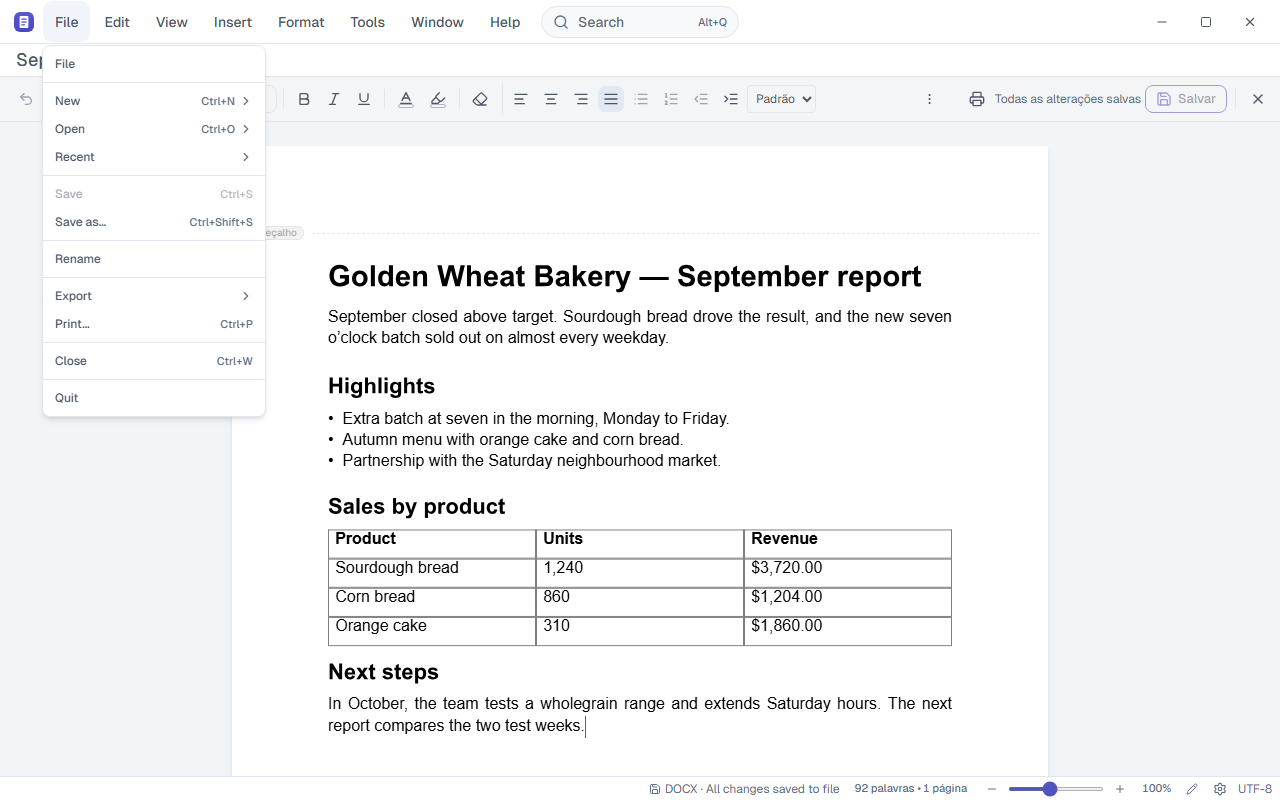
Create a blank document, spreadsheet or presentation from any of the three apps.
Where:File › New · Ctrl+N
Save
Ctrl+S writes to the same file, in the same format. Save as writes under another name or somewhere else. Whatever Grafos does not edit in a file is kept when you save.
Where:File › Save · Ctrl+S · File › Save as… · Ctrl+Shift+S or F12
Formats
Draft opens .docx, .dotx and .doc, and saves .docx. Grid opens and saves .xlsx, and imports and exports CSV. Deck opens and saves .pptx. All three export PDF.
Where:File › Export
Command bar
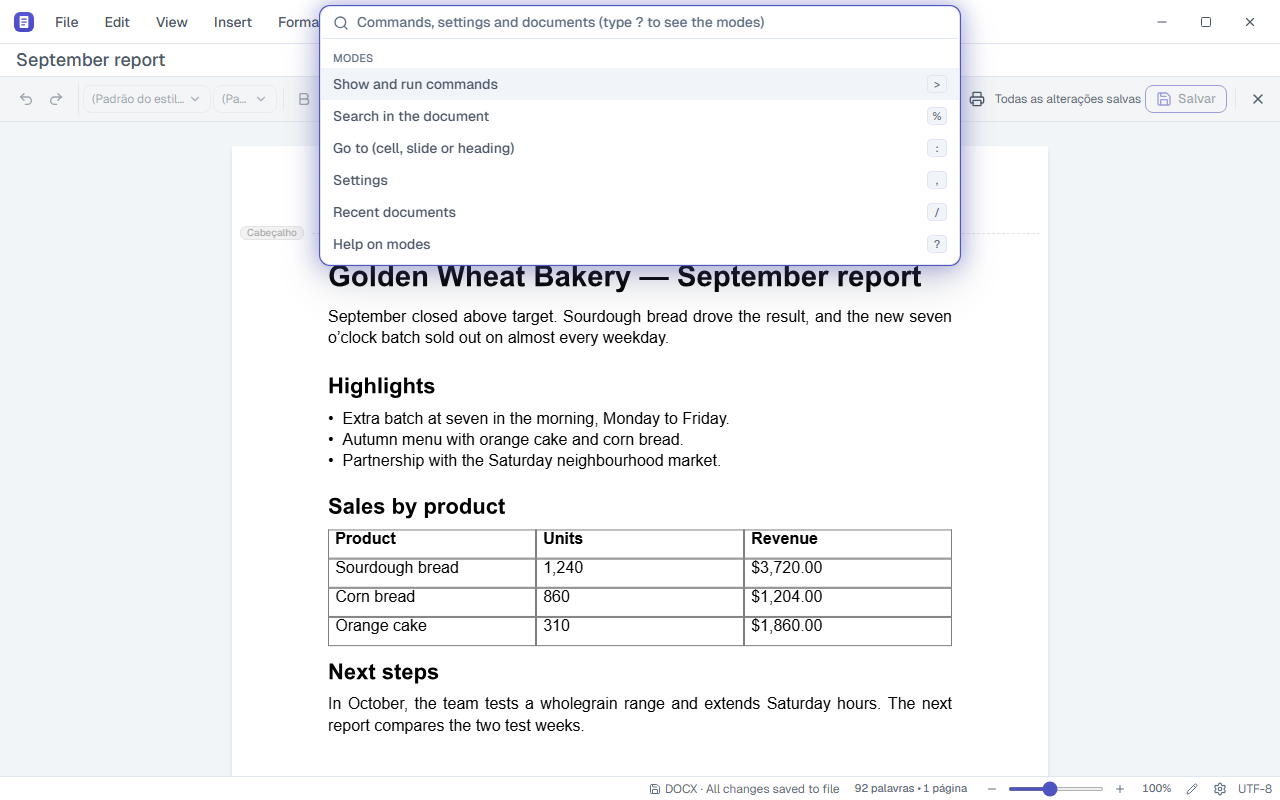
Type what you want to do and Grafos shows the command. The same box searches the document, jumps to a cell, slide or heading, opens settings and lists recent documents. Type ? to see the modes.
Where:Centre of the title bar · Alt+Q
Windows
Each document opens in its own window. Open a new window, switch between open ones, or keep one always on top.
Where:Window › New window · Ctrl+Shift+N · Window › Always on top
Appearance
Light, dark or same-as-system theme. Names written next to toolbar icons. Zoom from the menu, the keyboard or the status bar.
Where:View › Theme · View › Show button names · View › Zoom · Ctrl + / Ctrl − / Ctrl+0
Settings
Interface language (Portuguese or English), automatic updates and the full spelling dictionary.
Where:Ctrl+, · Settings button on the status bar
Automatic updates
Grafos checks for new versions in the background. When it finds one, it downloads it, checks the digital signature and installs it when you close the program. In Settings you choose the interval and the channel (Stable or Beta).
Where:Help › Check for Updates · Settings (Ctrl+,)
Help and diagnostics
Built-in help opens with F1. The shortcut list, with Ctrl+/. Help › Diagnostics shows what the program detected on your machine and in the open file.
Where:Help › Help · F1 · Help › Keyboard shortcuts · Help › Diagnostics